
Log in to the Catalyst cloud web dashboard at https://dashboard.catalystcloud.nz/
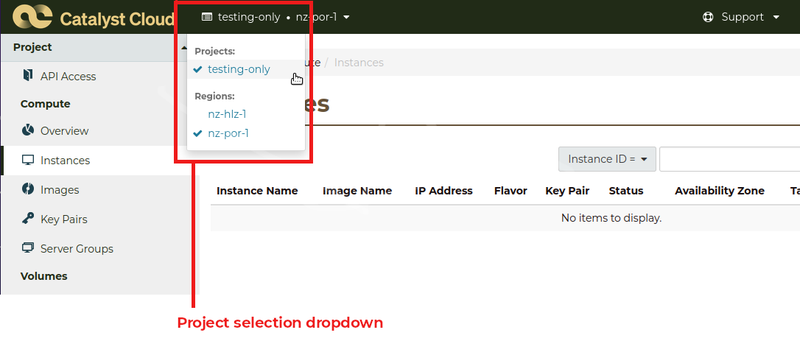
Select the customer project to add object storage to
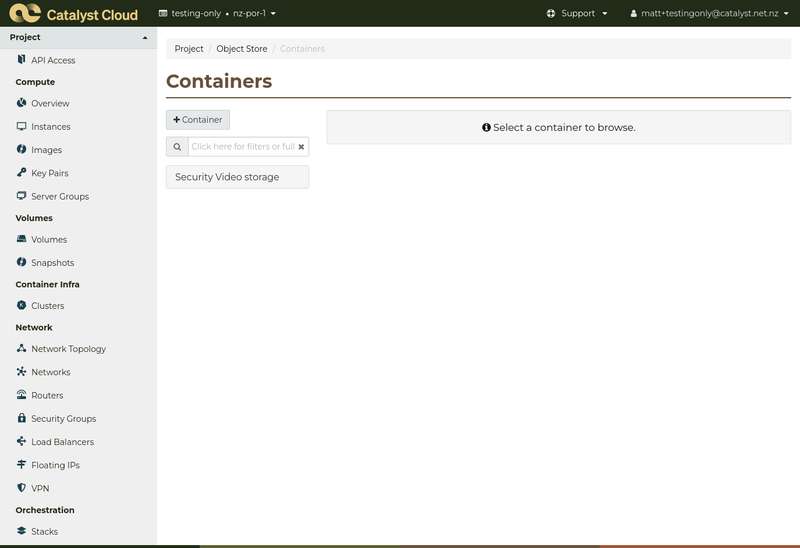
Creating an O2 storage container
Select the Containers link from the Object Store section of the menu (scroll all the way down to the bottom to find this).

Click the +Container button to create the container.

Enter details for your container:
- Container Name: enter a name to allow easy identification of the container in the dashboard (e.g., "Security Video Storage").
- Storage Policy: select the Single Region: nz-por-1, Erasure coded (nz-por-1--o2--sr-standard) storage policy.
- Container Access: select Not public to allow only authenticated access from you/your VMS.
Click Submit to create your container.
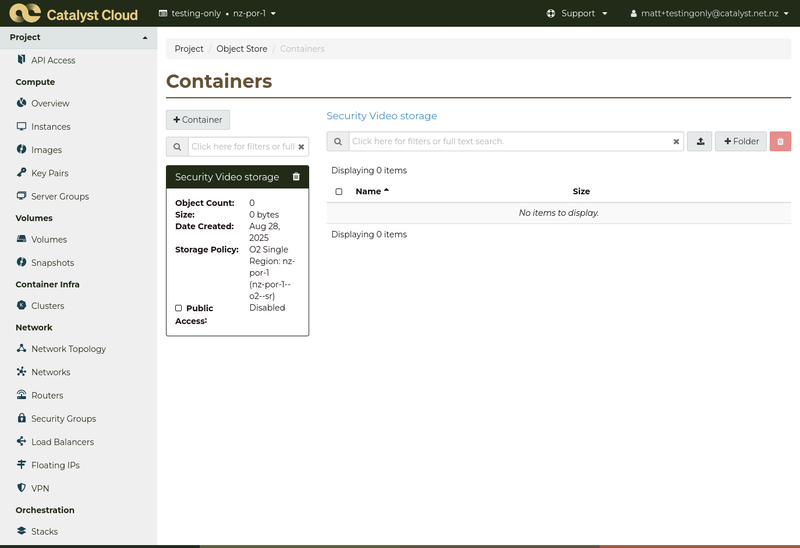
You can view your storage containers and usage in the dashboard.
Click on the container name to see more details:
Providing access to the container for the customer
It's recommended to create an access-limited account to provide access credentials for object storage containers for use in customer software configuration. This can be done on a per-customer basis so that all customers use different access credentials for their object storage.
Select Project Users from the Management section of the dashboard menu under the heading: Access Control (it is easier to find if you close the Project and Identity sections of the menu, as shown).
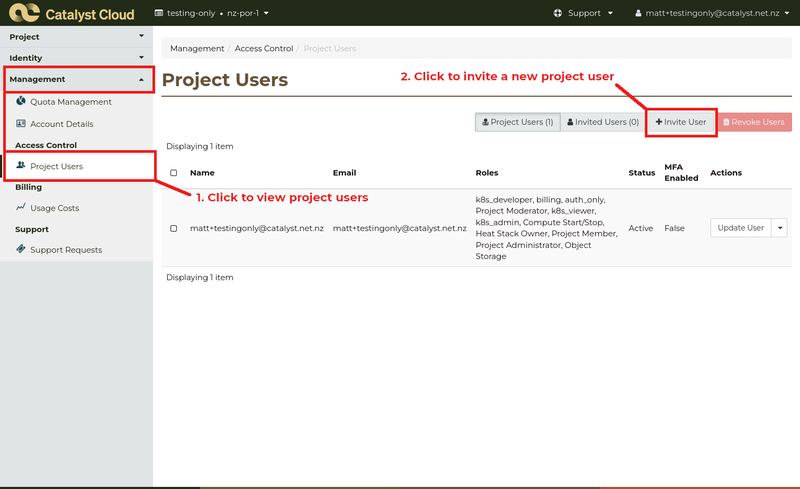
Click the + Invite User button to add a new user to the project.
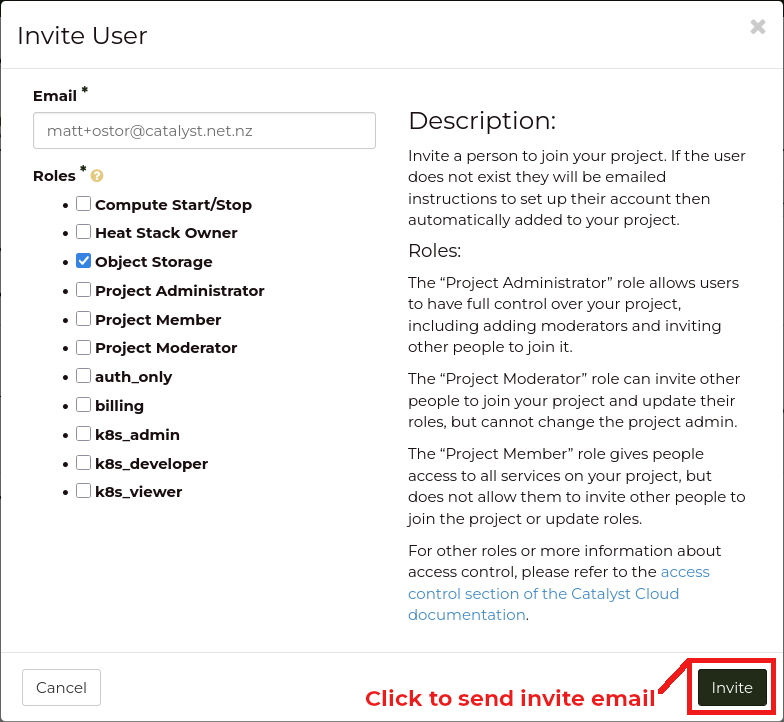
Enter an email address for access, set the Roles to "Object Storage", and click the Invite button to send an email invitation.
On receipt of the email, set a password for the user. The email and password may now be used to configure software to use the storage container.
Configuring S3-compatible access
Use these instructions if your software requires S3-compatible access credentials.
Log in to the Catalyst cloud web dashboard at https://dashboard.catalystcloud.nz/ as the user that you would like to view access credentials for.
Select API Access from the Project section at the top of the menu.
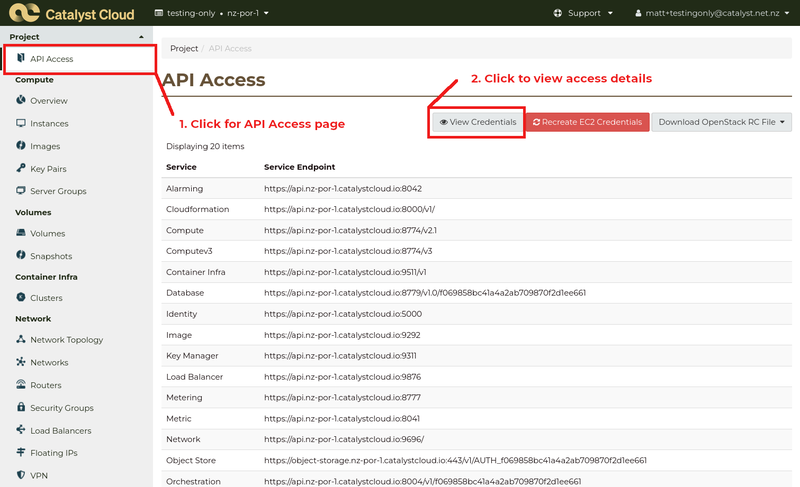
Click the View Credentials button.
The EC2 access credentials are displayed on the User Credentials Details popup. Click on the visibility (eye) icon to view the EC2 Secret Key and use the EC2 Access Key and EC2 Secret Key to configure your software.
